
Turn a Regular iPhone Into a Secure Cell Phone (Complete Setup Guide)


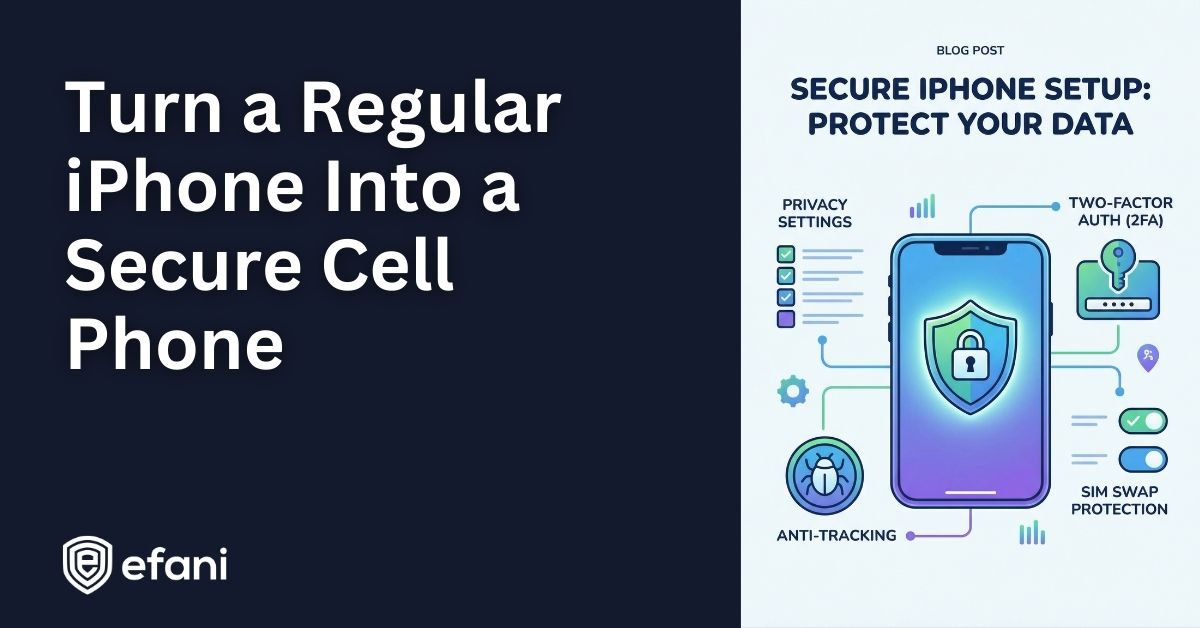
Introduction
This is not about buying a special phone.
This is about taking a normal iPhone and setting it up so it leaks as little about you as possible, resists account takeovers, and holds up better if someone pressures you, tricks a carrier, or briefly gets physical access.
No paranoia required. Just deliberate setup.
Think of this as reducing your attack surface, step by step.
Is your cellphone vulnerable to SIM Swap? Get a FREE scan now!
Please ensure your number is in the correct format.
Valid for US numbers only!
Start With The Right Mindset
A “secure phone” is not a product. It is a configuration plus habits.
Your iPhone is built for convenience. Cloud sync, easy recovery, biometrics everywhere, apps talking constantly in the background. All great for normal life. All bad for security.
So the goal here is simple.
Fewer identities tied together. Fewer recovery paths. Fewer silent connections.
You will lose some convenience. That is the trade.
Step 1: Lock The Phone Legally And Technically
This is the most important step, and most people get it wrong.
Use A Long Alphanumeric Passcode
Go to Settings → Face ID & Passcode.
Turn off Face ID completely. Choose “Change Passcode”. Select “Passcode Options”. Pick “Custom Alphanumeric Code”.
Use at least 12 characters. Longer is better.
Why this matters in the US is legal, not just technical.
A passcode is something you know. Biometrics are something you are. Courts have repeatedly treated those differently. A passcode gives you stronger Fifth Amendment protection in more situations than Face ID.
Know The Emergency Lock Trick
Even if you temporarily keep Face ID, learn this muscle memory.
Press and hold the side button and either volume button until the SOS screen appears.
This instantly disables Face ID and forces passcode-only unlock. Use it if you ever feel uncomfortable or pressured.
Step 2: Turn On Lockdown Mode
This is Apple’s highest security setting, and almost no one uses it.
Go to Settings → Privacy & Security → Lockdown Mode → Turn On.
Your phone will restart.
What this does:
- Blocks most attachment types in messages
- Disables complex web features used in exploits
- Blocks wired data access when locked
- Stops random FaceTime and service invites
- Makes spyware much harder to deploy
Yes, some websites will feel slower. Some previews will not load. That is the point.
If you are serious about security, this stays on.
SIM Swap Protection
Get our SAFE plan for guaranteed SIM swap protection.
Step 3: Block USB Data Access When Locked
This protects you if someone plugs your phone into a computer or forensic tool.
Go to Settings → Face ID & Passcode. Scroll to “Allow Access When Locked”. Turn OFF “Accessories”.
This means the port can charge the phone, but cannot move data unless you unlock it first.
Monthly
Yearly
Step 4: Harden Your Apple Account
Your Apple ID is the skeleton key to the entire device.
Turn On Advanced Data Protection
Go to Settings → Your Name → iCloud → Advanced Data Protection.
Turn it on. Create and store the recovery key somewhere offline.
This makes your iCloud data end to end encrypted. Apple cannot unlock it for you. Neither can anyone else.
If you lose the recovery key and your passcode, your data is gone. That is the trade.
Remove Your Phone Number Where Possible
Go to your Apple ID security settings.
If your phone number is listed as a recovery method, remove it if Apple allows. If not, make sure it is not the only recovery factor.
Avoid adding a credit card to this Apple ID. Use gift cards if you must buy apps.
Step 5: Reduce Network Tracking
Your phone leaks data just by connecting to Wi-Fi and cellular.
Rotate Wi-Fi Addresses
On iOS 18, this matters a lot.
Go to Settings → Wi-Fi. Tap the “i” next to each saved network. Turn ON “Rotate Wi-Fi Address”.
This prevents cafés, hotels, and offices from tracking your device long term.
Use A Real VPN
Apple’s Private Relay is fine, but incomplete.
For stronger protection, use a system-wide VPN.
Good options include:
- Mullvad
- Proton VPN
Turn it on before browsing or messaging. Use it consistently.
No VPN stops cellular tower tracking. Only Airplane Mode does. Know the limit.
Step 6: Fix Messaging And Browsing
Default apps are convenient, not minimal.
Secure Messaging
Install Signal and make it your default for private conversations.
Enable registration lock. Enable disappearing messages if appropriate.
Signal minimizes metadata far better than SMS or social apps.
If you want messaging without a phone number at all, Session is another option.
Secure Browsing
If you use Safari:
Turn on “Prevent Cross-Site Tracking”. Enable “Hide IP Address” if available.
Or use Brave or Firefox Focus for more aggressive defaults.
Step 7: Kill Unnecessary Location And Analytics
Go to Settings → Privacy & Security → Location Services → System Services.
Turn OFF:
- Significant Locations
- Location-Based Alerts
- Location-Based Suggestions
- iPhone Analytics
- Improve Maps
- Routing & Traffic
Keep Emergency Calls and Find My only if your threat model requires it.
Your phone should not be learning your habits.
Step 8: Lock Down Apps And Visibility
On iOS 18, you can now lock and hide apps.
Use this for:
- Messaging apps
- Password managers
- Banking apps
- Authenticator apps
Locking adds friction. Hiding removes casual visibility if someone unlocks your phone.
This is not forensic protection, but it stops shoulder surfing and casual inspection.
Step 9: Fix Password Management
Avoid storing critical passwords only in iCloud Keychain.
Use an independent password manager.
Bitwarden is a strong default. Strongbox works if you want local-only databases.
Protect the password manager itself with a long passphrase.
Step 10: Handle The Phone Number Problem
Your phone number is the weakest link.
If you keep using a normal carrier number, lock it at the carrier level and remove it from account recovery wherever possible.
If you want maximum protection against SIM swaps, carriers like Efani exist specifically to remove human overrides and enforce cooling-off periods.
That matters if you are high risk.
Daily Habits That Actually Matter
Security is not just settings.
Reboot your phone daily. Update iOS promptly. Be suspicious of links, even from contacts. Treat unexpected loss of service as an emergency.
If your phone suddenly says “No Service”, act immediately.
What This Setup Does And Does Not Do
This setup:
- Reduces tracking
- Limits damage from SIM swaps
- Improves legal protection
- Makes spyware harder to deploy
- Removes easy recovery paths attackers rely on
It does not make you invisible. Cellular networks still see you. Apple firmware is still closed source. A determined state actor can still target you.
But for normal people facing real-world threats, this puts you far ahead of almost everyone else.
A regular iPhone, configured deliberately, is already a secure phone.


