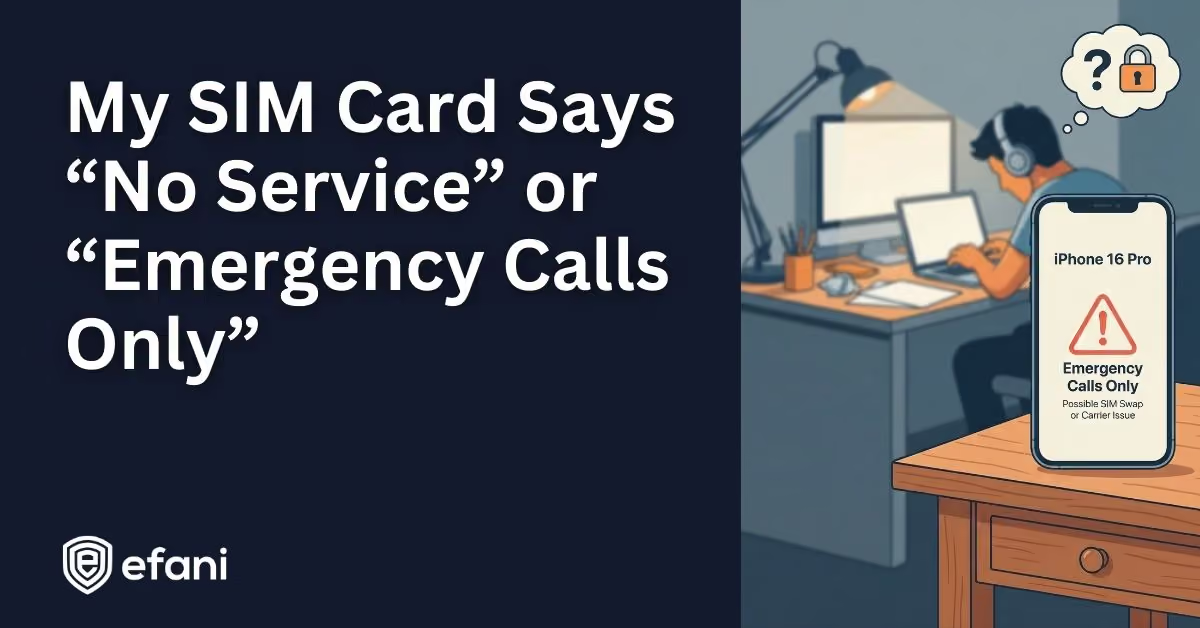
My SIM Card Says “No Service” or “Emergency Calls Only”: Is This a SIM Swap?


Introduction
Your phone goes from normal bars to “No Service” or “Emergency Calls Only” and suddenly your brain starts doing math.
Is it a tower issue? Did your SIM die? Did your phone break?
Or did someone just steal your number.
This article helps you diagnose what’s happening fast, without spiraling, and without guessing.
You’ll learn what these messages usually mean, how to rule out boring causes, and the exact signs that point to a SIM swap.
Is your cellphone vulnerable to SIM Swap? Get a FREE scan now!
Please ensure your number is in the correct format.
Valid for US numbers only!
The Fast Answer
If you’re in a place where you normally have coverage and you suddenly see:
- “Emergency Calls Only” or “SOS Only”
- and it does not fix itself after airplane mode and a reboot
- and you also get weird account alerts or carrier codes you did not request
treat it like a SIM swap until proven otherwise.
If it’s “No Service,” it can still be a SIM swap, but it’s more often basic radio or hardware issues. The difference matters, and we’ll break it down.
What These Messages Actually Mean
Your phone is not showing random words. It’s reporting where the connection failed in the process of registering to the network.
There are two broad categories:
- your phone cannot properly “hear” a tower
- your phone can hear the tower, but the network refuses to fully accept your SIM
Those map pretty cleanly to the two messages you’re seeing.
What “No Service” Usually Means
“No Service” usually means your phone is effectively disconnected at the radio level. It is not reliably locking onto a usable tower signal.
Common boring reasons include:
- you’re in a basement, elevator, parking garage, or a building that blocks signal
- there’s a local outage
- your phone’s antenna or baseband has taken damage from drops or water
- your SIM is physically failing or not seated properly
- your carrier settings or firmware update got weird and the modem is stuck searching
The key vibe of “No Service” is silence. Your phone is not confidently connected to anything.
From a SIM swap standpoint, “No Service” is not the clean signature. A swap is the carrier revoking your SIM’s legitimacy. That often looks more like rejection than silence.
But there is one edge case: if your phone was off or rebooting right as the swap happened, it can come back up and fail registration in a way that looks like “No Service.”
So do not dismiss it. Just diagnose it properly.
SIM Swap Protection
Get our SAFE plan for guaranteed SIM swap protection.
What “Emergency Calls Only” Or “SOS Only” Usually Means
This one is more serious.
“Emergency Calls Only” or “SOS Only” usually means:
- your phone can see a tower
- your radio is working
- but the carrier is not letting your SIM register for normal service
Think of it like this: the tower can hear you, but your SIM’s identity no longer matches what the carrier expects for your line.
In a SIM swap scenario, your number gets moved to a new SIM or eSIM. Your old SIM becomes “orphaned.” It is physically fine, but it’s no longer the active identity on your account.
Because emergency calling has special legal protections, the network still allows 911 access, so your phone gets downgraded into an emergency-only state.
Unless your account is suspended for billing, “Emergency Calls Only” in a place where you normally have coverage is one of the strongest technical hints of a SIM swap.
Monthly
Yearly
The Three-Minute Diagnosis Checklist
Do these in order. This is designed to isolate tower issues vs phone issues vs SIM provisioning issues.
Step 1: Toggle Airplane Mode For 30 Seconds
Turn airplane mode on, wait 30 seconds, turn it off.
Why this matters: it forces the phone to dump cached network registration state and do a fresh handshake.
If “Emergency Calls Only” comes right back instantly, that’s a stubborn rejection, not a temporary glitch.
Step 2: Reboot Once
Rebooting is not magic, but it resets the modem.
If you reboot and it comes back with the exact same “Emergency Calls Only,” the likelihood of an account-level problem goes up.
If you reboot and it flips between “Searching” and “No Service” for a while, that leans more toward coverage or hardware.
Step 3: Check If Wi-Fi Works
If Wi-Fi works fine but cellular is dead, it often points to carrier-side issues or SIM provisioning, not your entire phone being broken.
This is also important because Wi-Fi is how you protect yourself next.
Step 4: Test Your SIM In Another Unlocked Phone
This is the cleanest test you can do without calling anyone. If you have not already, it is also worth knowing how to set a SIM card lock on Android and iPhone so a stolen handset cannot be used with your SIM.
- If your SIM works normally in another phone, your phone likely has hardware or modem issues.
- If your SIM shows “Emergency Calls Only” in the second phone too, your SIM is not provisioned anymore. That strongly supports a SIM swap or an account suspension.
If you do not have another phone available, skip this and move to the next step, but know you’re losing one of the best signals.
Step 5: Try Logging Into Your Carrier Account
Try My Verizon, myAT&T, or T-Mobile ID on Wi-Fi. If you run separate lines, check both your work and personal plans, not just the one that lost service.
Look for any of these red flags:
- your password no longer works
- your account PIN was reset
- your line shows a new device or eSIM you did not activate
- you see a number transfer PIN generated that you did not request
- security toggles look turned off
If you’re locked out of the carrier portal and you also have “Emergency Calls Only,” the SIM swap probability gets very high.
Attackers often change carrier login details quickly so you cannot reverse the swap.
The Biggest “This Is A SIM Swap” Warning Signs
If you want the most reliable “yes this is happening” pattern, it’s usually a combo of connectivity plus account weirdness.
Look for this cluster:
- “Emergency Calls Only” or “SOS Only” in a normal coverage area
- you receive a carrier OTP or PIN text you did not request
- you get login alerts from email, banks, or crypto apps you did not trigger
- your email password suddenly “doesn’t work”
- you see password reset emails you did not request
- friends text you saying your number is acting weird, or they got odd messages
One symptom can be a glitch. A cluster is an incident.
The Biggest “This Is Probably Not A SIM Swap” Clues
These don’t guarantee safety, but they reduce the odds.
- other people on your same carrier in the same spot also have no service
- service returns normally after moving locations
- your SIM works perfectly in another phone
- your carrier portal shows no SIM changes, no new device, no recent transfer activity
- you still receive SMS and calls normally on your device, but data is slow (that’s usually congestion, not a swap)
Why Some People See “No Service” And Others See “Emergency Calls Only”
This part trips people up because iPhone and Android don’t always label things the same way.
- iPhone often shows “SOS” or “SOS Only”
- Android often shows “Emergency Calls Only”
- both usually mean the same concept: you can reach emergency services but you’re not fully registered for normal service
Meanwhile “No Service” can happen for coverage reasons, device reasons, or provisioning reasons. It’s less specific.
So do not over-index on the wording alone. Use the checklist and the pattern.
What To Do Immediately If You Suspect A SIM Swap
This is the moment where speed matters. If it’s real, attackers move fast. Work through the steps below in order. And once you are stable, the reason this happened at all is that your carrier account was the weak point, which is exactly what a secure mobile service is built to remove.
Get On Wi-Fi And Lock Down Your Email First
Email is the master key for resetting everything else.
From a safe device on Wi-Fi:
- change your email password
- revoke active sessions
- check recovery email and recovery phone settings
- look for forwarding rules you did not create
If you can switch email to passkeys or an authenticator app, do it.
Call Your Carrier From Another Phone And Say The Exact Words
Call from a spouse’s phone, friend’s phone, or a landline.
Say clearly:
“I’m a victim of SIM swap or port-out fraud. I need my line frozen and I need to confirm whether a SIM or eSIM change was made.”
Do not waste time in normal troubleshooting mode if you have the red flags. You want fraud handling, not basic support scripts.
Freeze Financial Accounts
If you have banking apps, Zelle, crypto exchanges, or anything that can move money:
- log in on Wi-Fi if you still can
- change passwords
- disable withdrawals where possible
- switch off SMS 2FA if you have app-based options
Even if you hate security homework, this is the one time it pays rent. If you hold crypto, run a company, or are publicly visible, you are a named target rather than a random one, and the security setup for high-risk individuals is different.
If You Confirm A SIM Swap, Expect A Store Visit
A lot of recoveries end with “go in-store with ID.”
That’s annoying, but it’s often the only path to reclaim the number if the attacker has changed account credentials and is actively fighting you.
One More Thing That Helps You Mentally
A SIM swap is not usually a “my phone got hacked” story.
It’s usually a “my number got reassigned” story.
That means:
- your phone may be completely fine
- your Wi-Fi will still work
- your best move is account control, not device repair
The Long-Term Fix So This Is Less Scary Next Time
After you get stable again, the best upgrade is simple:
Stop using your phone number as the skeleton key.
Wherever you can:
- move away from SMS codes
- use authenticator apps
- use passkeys where the service supports them, and move the rest of your accounts off SMS
- use a hardware security key for high-risk accounts
SIM swaps work because phone numbers were never meant to be identity. The bullets above harden your accounts. They do not harden the carrier layer where the swap actually happens, which is what a dedicated SIM swap protection covers.