
Best Mobile Security Tips (2026): Protect Your Phone, Identity, and Accounts


Introduction
You carry a little command center everywhere. It knows your face, your friends, your bank, your habits. To friends it is convenience. To criminals it is a jackpot. The biggest shift today is not fancy hacks in code. It is convincing messages that sound exactly like a bank, a boss, or a cousin who needs help right now.
The good news is that a few focused settings and habits take you from “easy target” to “tough nut.” Most of what you need is already on the phone or with your carrier.
A few settings take minutes and cut off entire classes of attacks.
Is your cellphone vulnerable to SIM Swap? Get a FREE scan now!
Please ensure your number is in the correct format.
Valid for US numbers only!
Start With A Lock
A device without a strong lock is an unlocked house. Set these once:
- Use a 6-digit PIN at minimum. A custom alphanumeric passcode is stronger.
- Turn on Face ID or Touch ID on iPhone, or fingerprint/face unlock on Android for daily convenience.
- Limit lock-screen previews. Hide message content on the lock screen to reduce shoulder surfing.
- Reduce the “grace period.” Require passcode immediately or after the smallest delay that still feels usable.
Multi-factor authentication blocks most account takeovers. The order of strength matters:
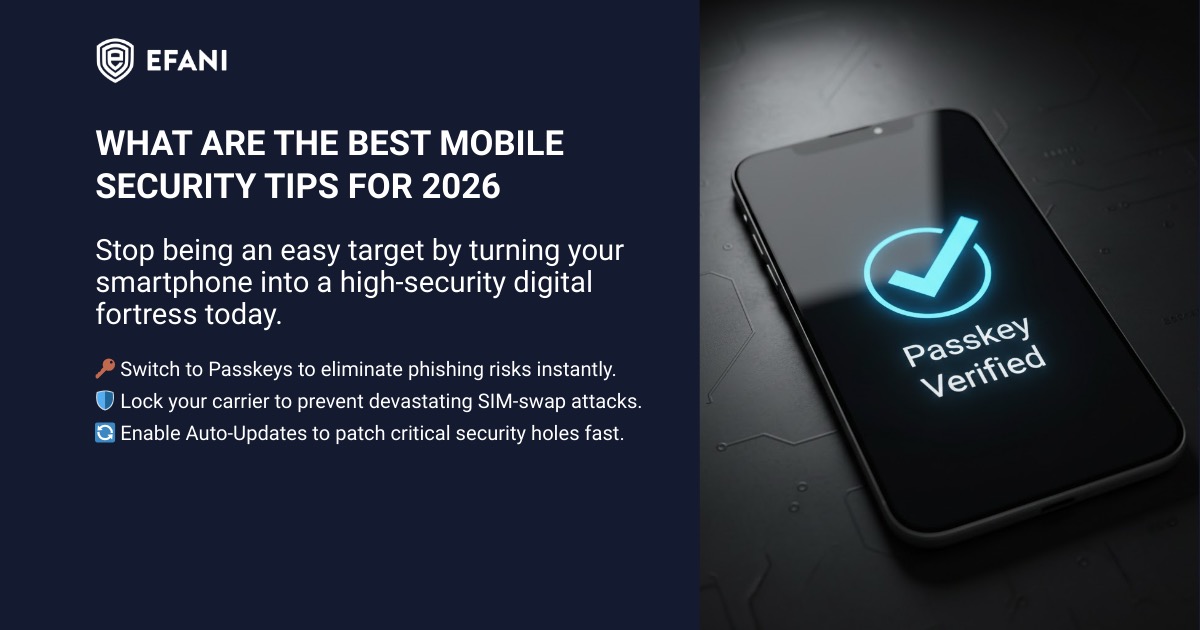
- Best choice: passkeys or a hardware security key. These stop phishing because there is no code to trick out of you.
- Good: an authenticator app with time-based codes.
- Weakest: SMS codes. Keep them only as a last resort. Where possible, disable SMS as a recovery option once a stronger factor is active.
Tiny habit that pays off: when a site offers “remember this device,” say no on shared or work machines and yes only on a personal phone you control.
Stop SIM Swaps At The Source
A SIM swap moves a phone number to a fraudster’s SIM. Once they control the number, password resets get very easy for them and very expensive for you.
Do this with your carrier account:
- Set a unique account PIN or passphrase that is required for any change.
- Ask for a port-out freeze or number transfer lock. Some carriers label this differently; the idea is the same.
- Use separate email addresses: one email for carrier login, a different one for banking, and another for social media. Never reuse the carrier password anywhere.
If this risk keeps you up at night, consider a secure cell phone service that specializes in strong port-out controls and concierge support. Efani Secure Mobile is one example.
Specialized secure phone service can raise the bar with tighter verification and human review.
Auto Patching For OS And Apps
Most real-world exploits hit known holes that already have fixes. Updates are the fastest win:
- Turn on automatic OS updates.
- Turn on automatic app updates.
- Manually check once a week. It takes one minute.
- Avoid “jailbreaking” or “rooting.” It breaks core protections and blocks key updates.
If an app has not been updated in a long time and holds sensitive data, look for an alternative.
SIM Swap Protection
Get our SAFE plan for guaranteed SIM swap protection.
Public Wi-Fi Is A Trap
Open networks invite snooping. Simple rules work:
- Prefer your personal hotspot or a known, password-protected network.
- If public Wi-Fi is unavoidable, use a reputable VPN and avoid logging into banks or key accounts during that session.
- Turn off Wi-Fi, Bluetooth, and NFC when not in use. Fewer radios, fewer risks.
- Delete old saved networks. Phones love to auto-join. Do not let them.
A VPN encrypts traffic on that local network. It does not stop phishing.
Treat it as a shield for transit, not a cure-all.
Monthly
Yearly
Official App Stores And Permission Hygiene
Malware often arrives as a shiny new app. Two habits kill most of that risk:
Source control
- Stick to the App Store and Google Play.
- On Android, keep install-from-unknown-sources off.
- Skim recent reviews with a critical eye. Look for mentions of pop-ups, odd permissions, or fake subscriptions.
Least privilege
- Grant only the permissions the app truly needs. Maps need location. A calculator does not.
- Prefer “Allow While Using” over “Always.”
- Review permissions every month. Remove camera, mic, photos, contacts, and precise location from apps that no longer need them.
When an app asks for something that feels unrelated to its core job, pause. That pause saves headaches.
iOS Quick Wins
Recent versions of iOS add practical controls that take seconds to enable:
- App Locking And Hidden Folder: Lock individual apps with Face ID and move sensitive ones to the hidden folder so they do not appear in search or notifications.
- Passwords App: Use Apple’s Passwords app for passwords and passkeys. Turn on 2FA suggestions.
- Share Specific Contacts: When an app asks for contacts, share only selected ones.
- Enhanced Bluetooth Privacy: Approve accessory access per app.
- Safety Check: For personal safety situations, quickly review and revoke sharing with people and apps.
- Lockdown Mode: For high-target individuals, enable Lockdown Mode to reduce the attack surface. It is strict. Use it if your risk level warrants it.
Small bonus: go to Settings → Privacy & Security → Location Services and flip more apps to “While Using” or “Never.” Also review Photo access and switch many to “Selected Photos.”
Android Quick Wins
Android ships powerful knobs. Turn on the ones that match real threats:
- Private Space: Create a locked profile for sensitive apps. It can even use a separate Google account. Notifications stay quiet there.
- Theft Detection Lock: Phone senses a grab-and-run motion and locks the screen on its own.
- Offline Device Lock: Auto-lock if the phone loses network for a while, a common thief tactic.
- Factory Reset Protection: Keep Google account credentials required for resets and critical changes.
- Partial Screen Recording: Share or record only one app window. OTP notifications hide automatically during sharing.
- Play Protect’s Live Scanning: Leave it on. It checks apps for shady behavior beyond store reviews.
Also visit Settings → Security → Advanced to confirm SIM change protections and device-admin settings. If your phone maker offers extra anti-theft tools, enable them.
Learn How to Spot the Bait Among QR Codes, OTP Bots, And AI Voice Clones
Modern scams look and sound perfect. The defense is process, not instinct.
- Smishing: Package, bank, or subscription texts with a link. Do not tap. Go to the official app or website and check from there.
- OTP Bots: A robocall asks for the one-time code that just arrived. Never share codes with anyone who contacted you.
- Voice Clones: A “relative” or “boss” calls in a rush. Hang up. Call back on the saved number you already have. Ask a question only they would know.
- Malicious QR: Stickers over real codes on parking meters or posters. If the code looks tampered with, skip it. For payments, open the official app and pay there.
Set personal rules ahead of time. “I never read codes over the phone.” “I always call back on an official number.” Good rules beat smooth talk.
Do These Today
If time is tight, take the highest return steps first:
- Turn on passkeys or a hardware key for email, bank, and cloud storage. Remove SMS as the primary factor where possible.
- Add a carrier account PIN and ask for a port-out lock.
- Enable Find My and test a remote-lock so the clicks are muscle memory.
- Auto-update OS and apps. Confirm it stuck.
- Review lock-screen previews and hide sensitive content.
- Pick one private messenger for close contacts and enable backup encryption if you use it.
- If SIM-swap anxiety is high, use Efani Secure Mobile to add human checks around number transfers.
Conclusion
Set a handful of strong defaults, add a carrier PIN, prefer passkeys, keep updates automatic, and treat surprises with healthy doubt. If a message, call, or code request arrives out of the blue, do nothing in the moment, then verify through a channel you control. Quiet, boring habits win against loud, clever tricks.
FAQs
1. What is the single highest-impact step to stop account takeovers?
Turn on passkeys or a hardware security key for email, banking, and cloud storage. Replace SMS as the primary factor. This blocks phishing because there is no code to trick out of you.
2. Passkeys vs authenticator apps vs SMS codes. Which is safest?
Passkeys or hardware keys are strongest, authenticator apps are good, SMS is weakest. Keep SMS only as a backup once a stronger method is active.
3. How can apps be locked or hidden on iPhone and Android?
On iPhone, lock individual apps with Face ID and move sensitive ones to the hidden folder. On Android, use Private Space to create a separate, locked profile for private apps and notifications.
4. What actually prevents SIM-swap fraud?
Set a unique carrier account PIN, request a port-out lock, and keep the carrier password unique. Use different emails for carrier, banking, and social accounts.
5. What are the signs of a SIM swap and what should happen next?
Sudden loss of service and odd 2FA alerts. From another device, contact the carrier, freeze the line, secure email and bank accounts, change passwords, and review recent logins.
6. Do phones need antivirus?
On Android, a reputable antivirus can add value, especially if sideloading has ever been used. On iPhone, traditional antivirus has limited benefit due to system restrictions. No antivirus can stop phishing or bad links.
7. Does a VPN make a phone “unhackable”?
No. A VPN encrypts traffic on untrusted networks and hides IP from local observers. It does not block malware and does not stop phishing. Treat it as a transit shield, not a cure-all.

.jpg)


