Why Is My Mobile Data Not Working on My iPhone (and How to Fix It Safely)


Introduction
You step out of the hotel, open Maps to find a ride, and nothing loads. You see bars, maybe even a 5G icon, yet Safari spins and your apps stall. You try Wi-Fi, it works. You switch back to cellular, it fails. In moments like this, you do not need theory, you need a clean, reliable path to a fix.
Follow the steps below in order. You will either restore data, prove it is a carrier problem, or uncover a security incident that needs immediate action.
Is your cellphone vulnerable to SIM Swap? Get a FREE scan now!
Please ensure your number is in the correct format.
Valid for US numbers only!
Initial iPhone Mobile Data Resets
Start with fast, non destructive resets that clear temporary bugs in iOS and the cellular modem. These steps solve a surprising number of data failures.
- Turn the iPhone off and on. Press and hold a volume button and the side button, slide to power off, wait 30 seconds, then power on. A graceful reboot closes stuck processes and reloads the modem firmware.
- Force restart if the phone is frozen or the simple restart did not help. Press and release Volume Up, press and release Volume Down, then hold the Side button until the Apple logo appears. A force restart is a hardware level reset that clears a wedged modem state without erasing data.
- Toggle Airplane Mode. Open Control Center, enable Airplane Mode for 20 to 30 seconds, then turn it off. This powers down all radios and forces a fresh tower handshake when they come back online.
- Toggle Cellular Data. Go to Settings > Cellular and turn Cellular Data off for 10 seconds, then on. This drops a stale data session and rebuilds it cleanly.
- Test with a first party app like Safari or Maps after each reset. You quickly learn whether the entire data stack is back or only one app is misbehaving.
Validate iPhone Cellular Settings
If quick resets fail, confirm that a setting is not blocking data. Work through these checks in one pass.
- Do this: Confirm Cellular Data is on, including per app access. Settings > Cellular, make sure Cellular Data is on, then scroll and ensure the affected apps have permission.
- Why it helps: The master switch and app level switches can silently block data.
- Do this: Disable VPN, then try again. Settings > General > VPN & Device Management > VPN, set Status to Not Connected. If it keeps reconnecting, tap the info button and turn off Connect On Demand.
- Why it helps: A down or misconfigured VPN can make it look like cellular is broken when the tunnel is the real failure.
- Do this: Remove unknown MDM or configuration profiles. Settings > General > VPN & Device Management, inspect profiles. If this is a personal device and a profile is unfamiliar, remove it.
- Why it helps: Profiles can enforce network rules that block data or force a broken VPN.
- Do this: Turn off Wi-Fi Assist. Settings > Cellular, scroll to the bottom and toggle off Wi-Fi Assist.
- Why it helps: In fringe conditions Wi-Fi Assist can get stuck between networks and stall traffic.
- Do this: Set Date and Time automatically. Settings > General > Date & Time, enable Set Automatically. If the time zone is wrong, enable Setting Time Zone in Settings > Privacy & Security > Location Services > System Services.
- Why it helps: Carrier authentication uses time stamped handshakes. A wrong clock can cause silent failures.
- Do this: Check Data Roaming. Settings > Cellular > Cellular Data Options. At home in the U.S., keep Data Roaming off. When traveling internationally, turn it on if your plan supports roaming.
- Why it helps: The wrong roaming setting either blocks data abroad or creates unstable roaming at home. If you travel often, see how dual eSIM roaming on iPhone 13+ works.
- Do this: Force LTE. Settings > Cellular > Cellular Data Options > Voice & Data, switch from 5G Auto to LTE and test while stationary for a few minutes.
- Why it helps: In spotty 5G areas the modem can hunt for weak 5G and repeatedly fail handoffs. LTE is often steadier.
Fix iPhone No Service or Searching
If the status bar shows No Service, Searching, or SOS, treat that as a total connection failure, not just slow data.
A quick decoder helps. No Service or Searching means the phone is not attached to a carrier network. SOS in some countries means the phone sees other networks for emergency calls, which proves the radio works but your line is not authenticating.
- Do this: Check for a carrier outage. Ask someone nearby on the same carrier if they have service. From Wi-Fi, check a real time outage site or your carrier status page.
- Why it helps: You avoid hours of phone troubleshooting if the network itself is down.
- Do this: Confirm your account is active. Log in to your carrier account from Wi-Fi or call support from another phone. Confirm the line is active, the plan is correct, and no blocks are present.
- Why it helps: Suspended lines and misprovisioned plans present exactly like phone problems.
- Do this: Stop chasing bars if you see hard No Service.
- Why it helps Walking around only helps weak signal. A hard refusal points to account, SIM, or hardware.
SIM Swap Protection
Get our SAFE plan for guaranteed SIM swap protection.
Troubleshoot iPhone SIM Card Hardware
For iPhones with a physical SIM, rule out a bad card or tray contact. Work slowly and keep the phone powered off during handling.
- Do this: Eject the SIM. Power off, insert a paperclip or eject tool in the SIM tray hole, and gently remove the tray.
- Why it helps: You can reseat a misaligned card and inspect it for damage.
- Do this: Clean the contacts. Use a dry microfiber cloth. If you see grime, use a clean pencil eraser gently, or lightly dampen a cotton swab with isopropyl alcohol and let it dry fully.
- Why it helps: Oils and oxidation create unreliable contact.
- Do this: Reinsert correctly. Align the notched corner, seat the card flat in the tray, slide the tray back in the same orientation, then power on.
- Why it helps: A rotated or raised SIM will not read.
- Do this: Cross test. Put your SIM in another unlocked phone, and put a known good SIM in your iPhone.
- Why it helps: If your SIM fails in the other phone, the issue is your SIM or account. If your iPhone fails with a good SIM, the iPhone hardware needs service.
Monthly
Yearly
Fix iPhone eSIM Mobile Data
On eSIM only models, your “card” is software. The fix is to reseat, update, or reinstall the eSIM profile.
- Do this: Reseat the eSIM. Settings > Cellular, tap your line, turn off Turn On This Line, wait 30 seconds, then turn it back on.
- Why it helps: This is the eSIM version of removing and reinserting a card. New to eSIM? Start with what an eSIM is and how it works.
- Do this: Check for a carrier settings update. Settings > General > About, wait on that screen for a minute, and accept any carrier update prompt.
- Why it helps: Updated carrier bundles fix modem compatibility issues.
- Do this: Reinstall the eSIM. Settings > Cellular, tap your line, choose Remove Cellular Plan, restart, then add the plan again using your carrier QR code or app.
- Why it helps: A corrupt eSIM profile is rebuilt from scratch.
Advanced iPhone Network Resets
If you are still stuck, clear and refresh the deeper network stack. Do these with Wi-Fi available.
- Do this: Update iOS. Settings > General > Software Update, install any available update, or connect to a computer and update there.
- Why it helps: Many modem bugs are fixed in point releases. For the bigger security picture, see iOS 26 security changes.
- Do this: Manually prompt a carrier settings check again from Settings > General > About after the iOS update.
- Why it helps: iOS and carrier bundles often pair together.
- Do this: Reset Network Settings. Settings > General > Transfer or Reset iPhone > Reset > Reset Network Settings.
- Why it helps: This returns all network configurations to factory defaults without touching your photos, messages, or apps.
What you will need to redo after the reset
- Rejoin Wi-Fi networks and reenter passwords.
- Repair Bluetooth accessories.
- Recreate VPN configurations and custom APN entries.
- Recheck cellular options like LTE versus 5G and Data Roaming.
Helpful caution if you use iCloud Keychain
- Consider turning off iCloud Keychain temporarily before the reset. That prevents old Wi-Fi passwords from being wiped across your other Apple devices during the reset. Turn it back on after you have rebuilt your networks.
SIM Swap Attack Warning for iPhone Users
Not every sudden loss of service is technical. A SIM swap is a fraud where someone convinces a carrier to move your number to a new SIM they control. Your phone shows No Service at the instant your number is taken, and the attacker starts receiving your calls and password reset codes by text.
Red flags that point to a SIM swap, not a phone glitch
- You suddenly cannot make or receive calls or texts, and at the same time you see password reset emails or sign in alerts for your email, bank, or social accounts.
- You receive a carrier message about a new device activation that you did not request.
- You notice unauthorized financial activity on bank or crypto accounts.
- Right before service died you were flooded with spam calls or texts. Attackers use this to bury real alerts.
If you only lost data after a software update or in a poor coverage area, and you do not see the red flags above, you are likely dealing with a technical issue.
If even one red flag appears, treat it as an active attack.
Immediate Emergency Steps During a SIM Swap
Speed matters. The goal is to reclaim your number and block account takeovers.
- Call the carrier fraud line from another phone Tell them you are the victim of an unauthorized SIM swap or port out. Ask them to lock the account and reverse the port.
- Change passwords while you wait Start with primary email, then banks, crypto exchanges, and social media.
- Move off SMS codes immediately Switch those accounts to an authenticator app or a hardware security key.
- File reports Submit cases with the FTC and the FBI Internet Crime Complaint Center.
- Alert your bank and employer Extra monitoring and temporary holds can limit damage.
Prevent Future SIM Swapping on iPhone
Harden your line so a single call to customer service cannot take it over.
- Set a strong carrier account PIN Make it unique to the carrier and store it securely.
- Turn on number lock or port freeze Many carriers offer an account lock that blocks transfers until you unlock it yourself. Learn how port-out locks protect against swaps.
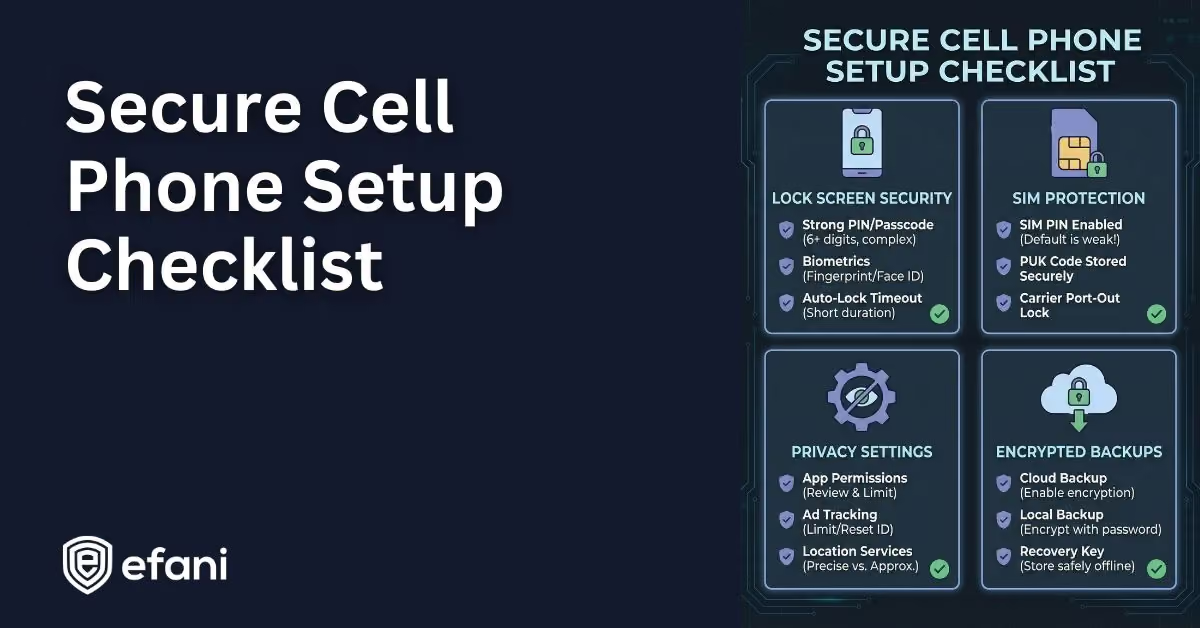
- Stop using SMS for 2FA Use an app based authenticator or a hardware key for email, banks, exchanges, and any high value account. See iPhone security tips.
- Use a separate email for your carrier and bank logins Keep it private and protected with a strong, unique password and a non SMS second factor.
- Reduce exposed personal data Limit public birthdates, addresses, and phone numbers that social engineers use. These iOS privacy tips help.
When to Call Your Carrier for iPhone Data Issues
If you have completed the resets, validated settings, ruled out a SIM swap, and you still have no data, escalate to the carrier.
- Explain what you already tried Mention the force restart, airplane toggle, LTE test, eSIM reinstall or SIM reseat, and the Network Settings reset.
- Ask for a backend check Have them verify line provisioning, plan features, IMEI registration, and roaming entitlements.
- Request a fresh SIM or eSIM reprovision Replacing the card or pushing a clean eSIM often clears hidden profile errors.
- Get a case number If it is a local outage or a tower issue, a ticket ensures you hear when it is fixed.
Efani Secure SIM Protection for High Risk iPhone Users
If you handle high value assets or your identity is a target, a standard line of defense may not be enough. Efani is a U.S. based secure SIM service built specifically to prevent SIM swaps.
We operate on major networks for coverage, and we combine that with strict identity verification and locked down processes that stop social engineering at the point it usually succeeds.
What sets Efani apart
- Stronger authentication for every high risk change Our multi layer identity checks prevent one employee or one sweet talker from moving your number.
- Dedicated port lock controls Ports and SIM changes require verified approvals.
- Financial protection on the SAFE plan Coverage is designed to backstop the what if scenario.
- U.S. based support for urgent incidents Human help when minutes matter.
- Fast migration We guide you through a clean port so you keep your number and gain stronger protections.
If your work, investments, or public profile increase your risk, moving to a provider designed to stop SIM swaps is the most decisive step you can take.
iPhone Mobile Data Checklist
Before you call it a day, run this quick summary from memory. It keeps you honest about the order.
- Restart, then force restart if needed.
- Toggle Airplane Mode and Cellular Data.
- Verify Cellular settings, per app permissions, VPN off, profiles removed, Wi-Fi Assist off, time automatic.
- Set Data Roaming appropriately, then force LTE.
- Decode No Service versus weak signal, check outages, and confirm account status.
- For physical SIM, reseat, clean, and cross test.
- For eSIM, reseat, update carrier settings, and reinstall the eSIM.
- Update iOS and carrier settings, then Reset Network Settings and rebuild your connections.
- Watch for SIM swap red flags and act immediately if they appear.
- Escalate to the carrier for provisioning, IMEI, and plan checks.
- If you are high risk, move your line to Efani for proactive SIM swap protection.
Work the funnel once, in order. Most people will restore data in the early steps. If you land on a carrier or security issue, you will catch it fast and limit damage.
And if you never want to face a SIM swap in the wild, bring your number to Efani and put a real wall between your identity and the attacker on the other end of a support call.
FAQs
Why did my iPhone suddenly lose mobile data?
A sudden data loss is usually caused by a network glitch, a carrier outage, or a software bug after an update. Start with a quick restart and Airplane Mode toggle. If those fail, confirm that Cellular Data is enabled, VPN is off, and no configuration profiles are interfering. In rare cases, a SIM swap attack can mimic this same symptom, so always check for any unusual account alerts.
How do I fix “No Service” or “SOS Only” on my iPhone?
These messages mean your phone cannot connect to your carrier. Check for carrier outages, verify your account is active, reseat or reinstall your SIM or eSIM, and test on LTE instead of 5G. If others on the same carrier have service, contact your provider to check your line provisioning.
Can a bad SIM card cause mobile data issues?
Yes. A damaged, dirty, or corrupted SIM can stop your phone from authenticating with the network. Clean the SIM contacts with a dry cloth, reinsert it properly, and test it in another phone. If it fails there too, request a replacement SIM or re-download your eSIM from the carrier.
Why does my iPhone show full bars but no internet?
This usually means the phone is connected to the tower but not passing data due to a bad network handshake or misconfigured setting. Turn Airplane Mode on and off, disable VPN, and reset Network Settings if needed. If the issue continues, force LTE mode for stability and check with the carrier.
How do I know if I’m a victim of a SIM swap attack?
If you lose service and at the same time see password reset emails, login alerts, or bank notifications you did not initiate, it is likely a SIM swap. Your phone number has been transferred to another SIM. Call your carrier’s fraud line immediately from another phone, change all critical passwords, and switch to app-based authentication instead of SMS.
How can I prevent mobile data problems and SIM swaps in the future?
Keep your iPhone updated, set a strong carrier PIN, enable number lock or port freeze, and avoid using SMS for two-factor authentication. For higher security, consider switching to a secure carrier like Efani that provides layered verification and insurance against SIM swap attacks.