How To Install eSIM On Your Google Pixel Phone


Introduction
If you have ever popped a tiny plastic SIM card out of a tray with a paperclip, you are going to love eSIM. It does the same job as a physical SIM, but it lives digitally inside your phone. No fiddly trays, no tiny cards to lose, and switching carriers or adding a second line can be way easier.
In this guide, I’ll walk you through what an eSIM is, how it works, and exactly how to install one on a Google Pixel. I’ll also cover the most common hiccups and how to fix them.
Is your cellphone vulnerable to SIM Swap? Get a FREE scan now!
Please ensure your number is in the correct format.
Valid for US numbers only!
What Is An eSIM?
eSIM stands for “embedded SIM.” Instead of a removable plastic card, your phone has a small chip built into it that can store one or more SIM profiles digitally.
A SIM profile is basically the set of details your carrier uses to identify you on the network (your line, your plan, and the credentials that let your phone connect). With a physical SIM, those details are stored on the card. With eSIM, they get downloaded to your phone.
A few quick reasons people switch to eSIM:
- No physical SIM to swap when you change carriers or plans
- Faster setup in many cases (scan a code, follow prompts, done)
- Dual SIM convenience if you want two numbers on one phone (work and personal, or home and travel)
- Less hassle while traveling, especially if you add a travel line temporarily
How eSIM Works
Here’s the simple version: your carrier gives you a way to download your line onto your phone.
Most commonly, that happens in one of these ways:
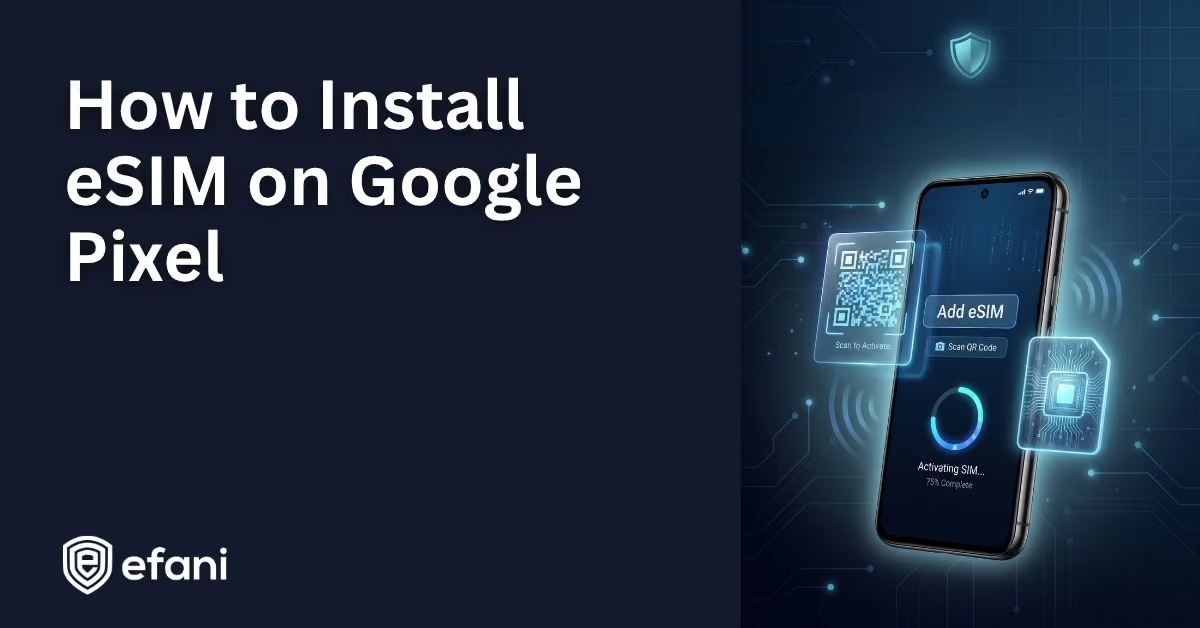
- QR code setup: You scan a QR code provided by your carrier, and your Pixel downloads the eSIM profile over Wi-Fi or cellular.
- Manual activation code: If you cannot scan a QR code, your carrier may give you activation details you can type in.
- Carrier app setup: Some carriers let you install an eSIM directly inside their app.
- Device-to-device transfer: In some situations, you can move an eSIM from an old phone to a new one with guided prompts.
Once the profile is downloaded and activated, your Pixel connects to the network just like it would with a physical SIM. You can make calls, send texts, and use data normally.
Why Use eSIM On A Google Pixel?
Pixels tend to have a clean, straightforward eSIM setup process, and eSIM pairs really nicely with how Android handles Dual SIM.
A few practical Pixel-friendly advantages:
- Keep two lines on one phone: Many Pixel models support Dual SIM with one physical SIM plus one eSIM. Depending on the model, region, and carrier support, some setups can even handle two eSIM profiles in more advanced configurations.
- Label lines clearly: You can name your lines (like “Work” and “Personal”) so you always know which one is being used.
- Choose defaults: Pick which line is used for calls, texts, and mobile data, and change it anytime.
- Great for secure, minimal fuss switching: If you change plans often or want to avoid handling physical SIM cards, eSIM is just easier.
SIM Swap Protection
Get our SAFE plan for guaranteed SIM swap protection.
Before You Start
Do these quick checks first. They prevent most of the annoying “why is this not working?” moments.
Confirm Your Carrier Supports eSIM For Pixel
Not all carriers support eSIM on every device, and some only support it for certain plans. If you’re activating a new line, make sure your carrier supports eSIM activation for your specific Pixel model.
Make Sure Your Pixel Supports eSIM
Most modern Pixels support eSIM, but there are exceptions depending on model and where it was sold. If you have an older Pixel or a special carrier variant, it is worth double-checking.
Have A Solid Internet Connection
eSIM installation usually requires downloading the profile, so Wi-Fi is strongly recommended. If your Wi-Fi is spotty, the download can fail halfway through.
Charge Your Phone
Aim for at least 30 percent battery. eSIM setup is quick, but you do not want your phone powering off mid-install.
Update Android (Optional But Helpful)
If your Pixel is behind on updates, eSIM menus can sometimes look different or behave oddly. A quick update can smooth out the process.
Monthly
Yearly
How To Install eSIM On A Google Pixel
Your exact screen names can vary a bit by Android version, but the path is usually consistent. If something looks slightly different on your phone, look for similar wording like “SIMs,” “Mobile Network,” or “Add SIM.”
Option 1: Scan A QR Code
This is the most common setup method.
- Open Settings
- Tap Network & Internet
- Tap SIMs (or Mobile Network on some versions)
- Tap Add SIM (or a plus icon near SIMs)
- Choose Set Up eSIM or Download A SIM
- When prompted, tap Scan QR Code
- Scan the QR code provided by your carrier (on paper, on another device, or in an email)
- Follow the on-screen prompts to download and activate the eSIM
- When it finishes, you should see the new line listed under SIMs
A couple of tips while scanning:
- Keep the QR code flat and well-lit.
- Hold your phone steady for a second. It usually locks on quickly.
- If it will not scan, try increasing your screen brightness on the device displaying the code.
Option 2: Enter Details Manually (If You Cannot Scan)
Sometimes you do not have a QR code handy, or the QR code will not scan. Many carriers provide manual activation details instead.
- Go to Settings → Network & Internet → SIMs → Add SIM
- Choose Set Up eSIM or Download A SIM
- Look for an option like Need Help?, Enter Code Manually, or Use Activation Code
- Enter the details exactly as provided by your carrier
- Follow prompts to download and activate
If manual entry fails, it often means one of these things:
- A character was mistyped (it happens a lot with long codes)
- The activation details expired
- The carrier needs to reissue the eSIM profile
Option 3: Use Your Carrier’s App
Some carriers let you install and activate the eSIM inside their app. If your carrier told you to use their app, follow their flow, but the general idea is the same: you sign in, confirm your device, and approve the eSIM download.
Even when you start in the app, Android may still pop up a system screen asking you to confirm the eSIM download.
Option 4: Transfer From Another Phone
If you are moving from an old phone to your Pixel, your carrier might support eSIM transfer. The flow varies a lot depending on the carrier and the phones involved, so treat this as a general heads-up:
- Some transfers happen during Pixel setup when you first turn on the phone.
- Others happen through carrier support or the carrier app.
- In some cases you will still end up scanning a fresh QR code, even if it is called a “transfer.”
If you are stuck, the fastest fix is usually to ask your carrier for a new QR code tied to your line.
What To Do After Installation
Once your eSIM is installed, take a minute to set things up so it feels seamless day to day.
Set Your Default Line For Calls, Texts, And Data
Go to:
Settings → Network & Internet → SIMs
From there, you can usually choose:
- Which SIM is used for mobile data
- Which SIM is used for calls
- Which SIM is used for SMS
If you keep two lines, this is where you make your Pixel behave the way you want.
Label Your SIMs
If you have more than one line, labeling is a small thing that makes a huge difference. Rename them to something obvious like:
- Personal
- Work
- Travel
- Backup
That way, when you place a call or manage data, you are not guessing.
Turn A Line On Or Off
You can typically toggle a SIM on or off in the same SIMs menu. This is great for travel lines you only want active sometimes.
Common eSIM Troubleshooting On Pixel
If everything went perfectly, you can skip this section. If you are staring at “Activating” for way too long, keep reading.
The QR Code Will Not Scan
Try these quick fixes:
- Clean your camera lens
- Increase brightness on the screen showing the QR code
- Do not zoom in too far on the QR code
- Try scanning from a slightly different angle
- Restart your Pixel and try again
If it still fails, ask your carrier for a new QR code or manual activation details.
eSIM Download Fails Or Gets Stuck
This is usually a connection issue or a temporary carrier issue.
- Switch to a stable Wi-Fi network
- Turn Airplane Mode on, wait 10 seconds, turn it off
- Restart the phone
- Make sure Date & Time are set to automatic (incorrect time can cause activation problems)
- Check for a system update
If it fails repeatedly, the carrier may need to reset the eSIM profile on their end.
You Have Bars But Calls Or Data Do Not Work
A few things to check:
- Confirm the eSIM is set as the default for what you are trying to do (calls, texts, data)
- Toggle mobile data off and on
- If you have two SIMs, confirm you did not accidentally set data on the wrong line
- Restart the phone
If data is the only issue, it may be an APN configuration problem on the carrier side. Carrier support can usually fix that quickly.
You Accidentally Deleted The eSIM
Deleting an eSIM profile removes it from your phone. Re-adding it usually requires a new QR code or a reissued profile, depending on the carrier.
If you removed it by accident:
- Contact your carrier and ask them to reissue the eSIM
- Then reinstall using the QR code or manual method
Dual SIM Tips That Make Life Easier
If you are using two lines, here are a few practical habits that help:
- Set one line as your default for calls, and enable “ask every time” if you want to choose per call.
- Use your personal line for data unless your work line has better coverage.
- Label the lines clearly so you never text from the wrong number.
- If you travel, consider keeping your main line active for calls and texts, and use the travel line for data.
eSIM Security And Privacy Basics
Since this is the Efani blog, it is worth saying plainly: eSIM can be a nice upgrade for convenience, but you still want to treat it like a key to your phone number.
A few smart steps:
- Use a strong screen lock (PIN or passcode, not just a simple swipe)
- Enable a SIM PIN if your carrier supports it (this can add protection in some scenarios)
- Keep your Google account secure with two-step verification
- If your phone is lost, contact your carrier immediately to suspend the line and protect your number
- Use Find My Device so you can locate, lock, or erase the phone if needed
One practical advantage of eSIM is that someone cannot simply pop out your SIM card as easily. That does not make your phone “invincible,” but it can remove a common trick used in theft situations.
Conclusion
Installing an eSIM on a Google Pixel is usually straightforward:
- Go to Settings → Network & Internet → SIMs → Add SIM
- Choose Set Up eSIM or Download A SIM
- Scan the QR code, or enter details manually
- Activate, then set your defaults for calls, texts, and data
If it does not work on the first try, it is almost always one of three things: Wi-Fi issues, an expired or incorrect activation code, or a carrier-side profile that needs to be reset.