How to Turn Safe Mode On and Off on iPhone


Introduction
When an iPhone acts like a runaway train (endless boot loops, frozen screens, or tweaks gone rogue) you need a siding (a special mode) to park it safely while you make repairs.
Apple hides two such sidings (Recovery Mode and DFU Mode) inside every handset, and the jailbreak world adds a third (Substrate Safe Mode).
Type Safe Mode iPhone into any search bar and you will see three very different fixes jumbled together. This guide sorts them out.
2026 update that affects the steps below
If you learned these procedures years ago, the biggest practical change in 2026 is what you use on the computer.
- On a Mac: restores and updates are handled in Finder.
- On Windows 10 or 11: Apple now expects many people to use the Apple Devices app (from the Microsoft Store) to back up, update, and restore an iPhone.
- iTunes still exists, but mostly for older setups: macOS Mojave or earlier still uses iTunes, and some Windows PCs still use iTunes if Apple Devices is not installed or not supported.
Also, Apple's current major iPhone software is iOS 26, while older iPhones may be on iOS 16 or iOS 12 with separate security updates. The button sequences for Recovery and DFU are the same, but what the on screen graphic looks like and what your computer calls the mode can vary slightly by version.
Is your cellphone vulnerable to SIM Swap? Get a FREE scan now!
Please ensure your number is in the correct format.
Valid for US numbers only!
Safe Mode #1: Recovery Mode (iBoot Recovery)
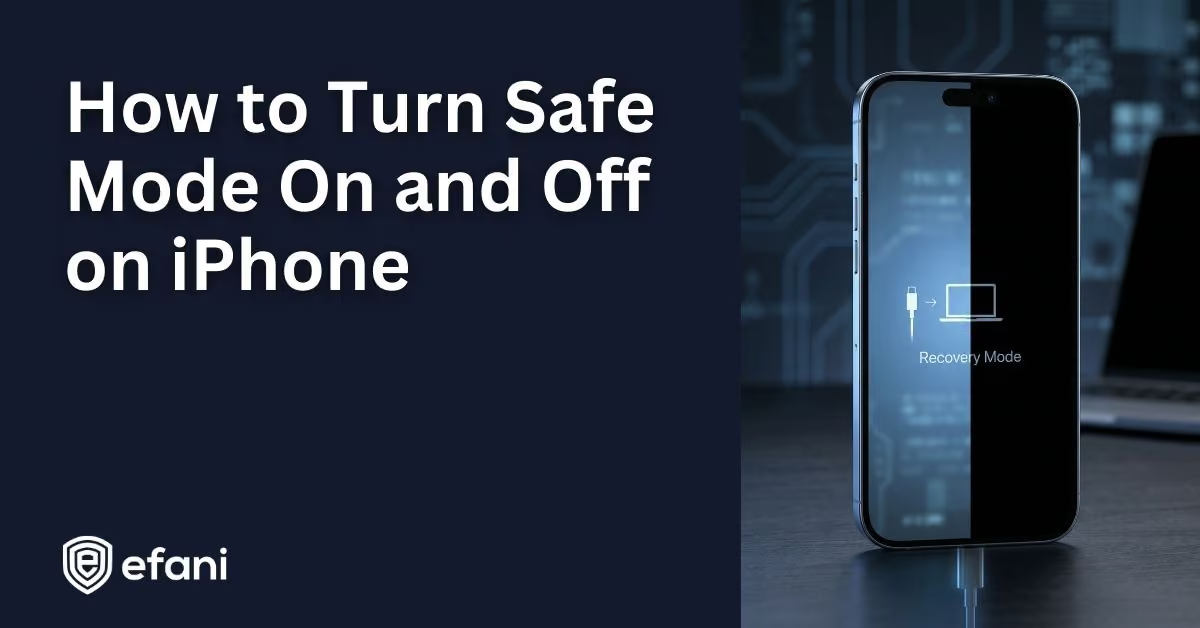
Recovery Mode boots only the iBoot loader and shows a "Connect to computer" graphic. iBoot checks your firmware and lets Finder, the Apple Devices app, or iTunes reinstall or update iOS.
When to use it
- Stuck on the Apple logo
- Device not recognised by a computer
- Forgotten passcode or disabled iPhone that needs a reset
How to turn Recovery Mode on
- iPhone 8 or later (including iPhone SE 2nd generation and later, plus the iPhone 17 lineup)
- Quick press Volume Up
- Quick press Volume Down
- Hold the Side button until the cable screen appears (keep holding even if you see the Apple logo first)
- iPhone 7 and 7 Plus: Hold the Side button and Volume Down together until the cable screen appears
- iPhone 6s and earlier (including iPhone SE 1st generation): Hold the Home button and the Side (or Top) button together until the cable screen appears
What to do after the cable screen appears
- Keep your iPhone connected to the computer.
- Open Finder on Mac, or open the Apple Devices app on Windows (or iTunes on older setups).
- Select your iPhone when it appears.
- If you get the choice, try Update first to reinstall iOS without erasing data. If Update fails, or if you are locked out by a forgotten passcode, choose Restore.
How to exit Recovery Mode: Force restart with the same buttons used above, or wait about 15 minutes for iBoot to time out and reboot iOS.
Precaution: Selecting Restore in Finder, Apple Devices, or iTunes erases everything. Choose Update first if you hope to keep data.
Extra 2026 notes that prevent surprises:
- Activation Lock is not bypassed. After a restore, you may still need your Apple Account email and password if Find My was enabled.
- Restoring does not always remove an eSIM plan. Many restores keep your eSIM, which is helpful for most people but important if you are selling or handing down the phone.
Safe Mode #2: DFU Mode (Device Firmware Update)
DFU Mode sits deeper than Recovery. The screen stays black, nothing loads, and Finder, Apple Devices, or iTunes can reinstall the entire operating system and modem firmware.
Together, Recovery and DFU act as the two pillars of what people often mean by iPhone safe mode, giving the operating system a clean slate for repairs.
When to use it
- Recovery Mode cannot finish a restore
- The phone keeps looping back into Recovery Mode
- Severe firmware corruption is suspected, or you need the deepest reinstall possible
- A downgrade is still signed for your exact device (this is rare for most users)
How to turn DFU Mode on
Use a good cable, connect directly to a USB port (no hubs), and keep the phone charged. DFU is powerful, but it is not forgiving if the connection drops mid restore.
- iPhone 8 or later (including iPhone SE 2nd generation and later, plus the iPhone 17 lineup)
- Quick press Volume Up
- Quick press Volume Down
- Hold Side until the screen goes black
- Keep holding Side and also hold Volume Down for 5 seconds
- Release Side but keep holding Volume Down for about 5 to 10 seconds until the computer detects the phone
- iPhone 7 and 7 Plus
- Hold Side and Volume Down for 8 seconds
- Release Side but keep holding Volume Down for another 8 seconds
- iPhone 6s and earlier
- Hold Home and Power for 8 seconds
- Release Power but keep holding Home for another 8 seconds
The screen must stay black. If the Apple logo or cable graphic appears, start over.
How to exit DFU Mode
Force restart the device:
- iPhone 8 and later: quick press Volume Up, quick press Volume Down, then hold Side until the Apple logo appears
- iPhone 7 and 7 Plus: hold Side and Volume Down until the logo appears
- iPhone 6s and earlier: hold Home and Power until the logo appears
Precaution: A DFU restore installs the latest signed iOS version for your model and cannot be reversed, so back up first. In 2026, that usually means iOS 26 for supported iPhones.
Recovery Mode versus DFU at a glance
- Screen: Recovery shows a cable graphic; DFU stays completely black
- Bootloader level: Recovery loads iBoot; DFU loads nothing from iOS
- Auto exit: Recovery times out after about 15 minutes; DFU waits until you force restart
- What your computer says: Finder and Apple Devices may still show "recovery mode" even when the phone is in DFU with a black screen
- Risk: Recovery is safer for beginners; DFU is powerful but interruption can brick the phone
Safe Mode #3: Jailbreak only Safe Mode (Substrate or No Tweaks)
On jailbroken devices, Substrate Safe Mode disables all third party tweaks after a crash so the phone can boot without looping. A banner or status bar message may appear to confirm the phone is in Safe Mode.
A 2026 reality check: jailbreak support comes and goes. On modern iPhones (XS and newer) there has not been a public jailbreak for current iOS builds for long stretches of time, so this section only applies if your device is already jailbroken on a supported setup.
Automatic entry
Any SpringBoard crash caused by a tweak triggers Safe Mode. Open Cydia or another package manager, remove the offending tweak, then respring.
Manual entry
If you are hunting for how to put iPhone in Safe Mode without a computer, the Volume Up boot trick below is your ticket.
- Volume Up boot: Power off, power on while holding Volume Up until the lock screen appears. Works on many jailbreaks and can stop endless respring loops.
- unc0ver toggle: Open unc0ver, turn off Load Tweaks, tap Jailbreak. The phone boots without tweaks so you can uninstall the bad one.
- checkra1n option: In the checkra1n desktop app, tick Safe Mode before booting the device.
- palera1n flag: When jailbreaking from the command line, add the safe boot flag to boot without tweaks. palera1n targets checkm8 vulnerable devices (for example, iPhone 6s through iPhone X) on iOS 15 and later.
Leaving jailbreak Safe Mode
- Tap Restart on the banner after removing problem tweaks
- If you used Volume Up boot, reboot normally without holding the button
- Re enable Load Tweaks or untick Safe Mode in your jailbreak tool, then re jailbreak
Warnings
- Jailbreaking can void warranty and expose security risks
- Safe Mode does not erase data, but unresolved issues may require a full restore
- Always verify tweak compatibility before installing
Note: That same Volume Up method answers the often asked how to start iPhone in Safe Mode question when tweaks crash SpringBoard.
SIM Swap Protection
Get our SAFE plan for guaranteed SIM swap protection.
Safety checklist Before Enabling Safe Mode in iPhone
Treat these modes like fire escapes. Learn the steps before trouble strikes and you will be ready when your iPhone misbehaves.
- Back up before any restore (iCloud or encrypted computer backup)
- Use a reliable USB C or Lightning cable to avoid disconnects
- On Windows, use the Apple Devices app if available, and keep it up to date
- Know your Apple Account password if Find My is enabled, because Activation Lock may appear after a restore
- Verify tweaks before installing
- Remove tweaks one by one if loops continue, or perform a DFU restore if necessary
Monthly
Yearly
When Do You Need To Enable Safe Mode in iPhone?
Safe Mode is not a single switch but three separate lifelines, each designed for a different category of trouble.
Knowing which one to reach for (and when) keeps your data safe, your phone functional, and your stress low even if you use the most secure cell phone carrier such as Efani secure mobile.
Recovery Mode
Use it when the problem sits on the surface.
- Your screen is frozen on the Apple logo or a spinning wheel after an update.
- Finder, Apple Devices, or iTunes will not recognize the device, yet you still see life on the display.
- You forgot the passcode and need to wipe the phone before restoring from backup.
Recovery Mode loads iBoot, lets you reinstall the signed version of iOS, and gets you back online quickly. It is an ideal first step even for users relying on a secure cell phone service for work or travel.
DFU Mode
Reach for DFU when damage runs deeper.
- Recovery Mode fails, stalls, or throws cryptic error codes.
- Firmware corruption causes endless boot loops or touch screen paralysis.
- You need the deepest reinstall possible when nothing else works.
DFU bypasses iBoot entirely, so it can revive a phone that appears dead. Always back up, because a DFU restore installs the newest signed firmware and wipes the device, even if you subscribe to the most secure cell phone carrier.
Substrate (Jailbreak) Safe Mode
Enable this no tweaks state any time a jailbreak extension misbehaves.
- SpringBoard keeps crashing the moment the lock screen appears.
- A new tweak sends the phone into an immediate respring loop.
- You want to audit or remove multiple tweaks without losing jailbreak status.
Booting with the Volume Up trick or a jailbreak tool safe option disables all tweaks so you can open Cydia, purge the culprit, and keep rolling on your secure phone service without a full restore. No one can protect a jailbroken phone from a buggy tweak, so Safe Mode remains essential.
Conclusion
Learning the basics of iPhone safe mode turns a runaway handset into a repair shop on rails. Safe Mode on iPhone is your emergency lane. Recovery Mode rescues everyday software glitches, DFU Mode repairs the deepest firmware wounds, and Substrate Safe Mode quarantines rogue tweaks on jailbroken devices.
Learn the button sequences now, keep regular backups, and pair your device with a secure cell phone service such as Efani secure mobile for added network level protection.
FAQs
What is Safe Mode on iPhone?
Safe Mode on iPhone is an umbrella term for Recovery, DFU, and, on jailbroken devices, Substrate modes. Each one loads only the bare essentials so you can update, restore, or disable tweaks when iOS cannot boot normally.
How to boot iPhone in Safe Mode?
On stock phones use Recovery Mode first. On a Mac, use Finder. On Windows in 2026, use the Apple Devices app when possible (or iTunes on older setups). On jailbroken phones, power on while holding Volume Up to boot in Substrate Safe Mode and disable all tweaks until you respring.
What is the single biggest difference between Recovery Mode and DFU Mode?
Recovery Mode still loads the iBoot loader and shows a cable graphic, so Apple software can verify the firmware before installing it. DFU Mode loads nothing at all, leaving you with a black screen and direct low level access for a full reinstall. Because DFU bypasses iBoot, it can fix problems Recovery cannot, but it also wipes the phone completely.
Will any Safe Mode erase my photos or messages?
Entering any Safe Mode leaves data untouched. Only the act of restoring or updating in Finder, Apple Devices, or iTunes can erase content. Always pick Update first and keep recent backups in iCloud, Finder, or an encrypted local archive.
Why does DFU sometimes install a newer iOS than I want?
During a restore, Apple generally signs only the newest software for most devices, so the restore process upgrades to the latest signed build by design. Plan accordingly before entering DFU.
How can I exit DFU Mode if the phone seems stuck?
Force restart the handset. On iPhone 8 or later, quick press Volume Up, quick press Volume Down, then hold the Side button until the Apple logo appears.
Does putting the phone in Recovery Mode void AppleCare or warranty?
No. Recovery Mode and DFU Mode are official diagnostic tools. However, jailbreaking can void warranty coverage, so if your phone is jailbroken use Substrate Safe Mode first and consider restoring to stock before any warranty claim.